Blog Categories in Word 2007

Many blog hosts support categories, including WordPress where this blog is hosted. Though many argue that in a Web 2.0 world, tags have superseded categories for classifying posts, that’s an argument for another day. Including a Categories entry for your sidebar gives your readers quick access to your collected wisdom on a topic. The question at hand then is, what kind of support does Word offer for the blogger?

Inserting a Category
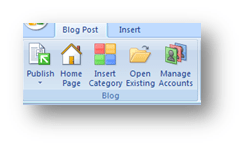
When you have set up your blog connection, the categories that you have already defined in WordPress will be recognized and made available to your post. On the Ribbon, your first group is the Blog group in which the Insert Category button lives. Clicking on this button will insert a drop-down box at the top of your post.


When you click on the drop-down, you can select one of your categories. Publishing your post will pass this data to WordPress and your entry will be appropriately classified. Want to include a post in more than one category? Click on the Insert Category button again and select another category.


Adding a New Category

The Category drop down box tempts you with the invitation to ‘type a new one’ to add a category to your WordPress list. Don’t be fooled. This function does not appear to work and each test that I did succeeded in pushing my post into the uncategorized category. The only workaround I have found right now is to go to the blog control center and add the category there. Update your entry and publish it. We’ll watch for a fix for this in the future.

A Word 2007 Shortcut for Blogging

One of things that make the blogging life easier is having simple, click-to-open access to your tools. Choosing Word 2007 as your client might not seem to be worth the effort on first glance. Right out of the box, creating a new post is a three step process.

  1. You’ll start Word which creates a default empty document.
  2. Then you’ll click the Office Button
  3. and then select Blog Post from the menu.


Seems like way too much work for me. Perhaps we ought to make a shortcut to simplify the whole process.

Creating a Word Blogging Shortcut

Word documents are based on templates that contain the formatting information for each type of document that you create and the blog post is no exception. Word supports command line switches so, with a little creative shortcutting we can override the Normal.dotx template with the Blog.dotx template and start the word processor in blog posting mode. Once you’ve located everything the process is a piece of cake. Watch.

  • The first thing you need to do is gather some information. You’ll need to identify the locations of the two files you are going to use, Winword.exe and Blog.dotx. Their default locations are:
    • Winword.exe F C:\Program Files\Microsoft Office\Office12\WINWORD.EXE
    • Blog.dotx F C:\Program Files\Microsoft Office\Templates\1033\Blog.dotx
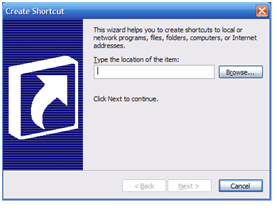
  • Right click on the desktop and select New-Shortcut from the context menu. You’ll troubles will be rewarded with this:


  • You are going to use two of Word’s switches:
    • /q – starts Word without the splash screen
    • /t – starts Word with a specified template
  • In the data field, type the following line being sure to make any changes needed to accommodate your folder structure. The double quotes are necessary because of the spaces in the path. Also be sure to note that there is no space between the /t switch and the template name. Inserting a space there will open the template for editing and you don’t want to do that. At least not right now.
    • “C:\Program Files\Microsoft Office\Office12\WINWORD.EXE” /q /t”C:\Program Files\Microsoft Office\Templates\1033\Blog.dotx”


  • Click Next and you’ll be asked to name the shortcut. You’re a blogger, be creative.
  • Tada!


That should keep you occupied for today. Next, we’ll start checking out some of the features that Word brings to the game.

Blogging with Word 2007

Writers have a wide variety of choices when considering what tool to use in composing their blog posts. The internal editor of the blog software (e.g. WordPress, Blogger, etc.) is the simplest choice and it probably does the job for the majority of posts. When the writer wants to get a little more complex in their layout capabilities or have access to other editing tools, an external client is usually chosen. The editor must recognize the API of the writer’s blog host, but aside from that, most do a pretty good job in pretty much the same way. I’ve been using Windows LiveWriter for some time now and I am pleased with the results. It supports plug-ins, some nice image formatting, good text formatting tools, drafts with only one or two annoying proclivities (when it uploads an image to WordPress, it sends the image twice). Why consider Word as a blog client then? Two reasons; I like simplicity and if I can narrow my software installation down by using a multitasker then I’m happier and second, Microsoft has recognized the blogosphere big time and they have included new blogging features in Word and I want to see how well it will work.

Creating a New Post

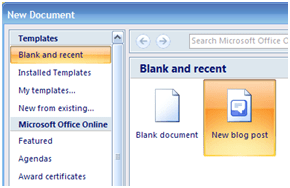
Today we’ll examine Word’s capabilities by creating the post that you’re now reading. The blogging tools are enabled when you select New, and Blog. The template is set up with a title bar and a nice clean work area below. The new Ribbon interface that replaces the old menu and toolbar interface provides you with context specific tools as Word takes notice of what you are working on. For example, when the image was inserted, a new ribbon becomes visible with the image positioning and editing tools. When the focus shifts from the image, the ribbon vanishes keeping the interface clear. It takes some getting used to but in the end, it is going to prove to be a step forward in interface design.

Publishing
Your Entry

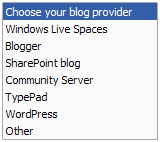
Setting up your blog host is a simple process as long as your host is a recognized provider (as shown in the choices at right) or it uses a known API. The step by step setup will ask all of the expected questions to create a publishing connection and you’re ready to go. Any categories that you have defined will be downloaded from your site and can be inserted into your post before publishing it. When the entry is ready, click on the Publish button and your post is sent to your blog for the world to admire.
We’ll look at the tool in greater detail in the days to come as I try more of the features but for now I’m satisfied but not overwhelmed. Are there any immediate features missing? As far as I can tell there is no way to insert tags but I may be simply missing the feature. Time will tell.

Killing Me With Words

If someone is attacking your reputation and character, you come back with all guns blazing, right? Proverbs 22:1 says “A good name is more desirable than great riches; to be esteemed is better than silver or gold.”  When your good name is the subject of a smear, you should go out of your way to correct those who mention it, shouldn’t you?

Interesting questions and currently, a subject of great struggle for me. If the character assassination were limited to me personally it would be much easier to deal with but my reputation affects my church and my family as well. Its seems as though I’m letting them down when I don’t confront the incorrect stories but, at the same time, so many before me have managed to ‘turn the other cheek.’

Turning a desire for retribution away is made possible only by spiritual maturity and trust. The question I must ask myself when I feel the anger welling up at the perpetrators is where do I put my trust? Is my faith in my own abilities to correct the situation or in God’s ability to work good from bad? I pray the second but must work with diligence to control the first.

Ecclesiastes wrote (7:1) that “a good name is better than fine perfume, and the day of death better than the day of birth.”  Reading on in the passage, he explains this to mean that we learn more from hard times than from good times. This is certainly a truth but that doesn’t make it any easier. The broken parts in me still long to right the situation.

Here is a great post on reputation.

A Jonah Heart

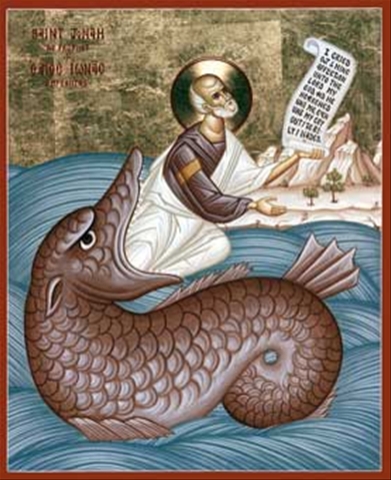
We’ve all got a Jonah heart that leads us away from God. We’ve all got a Jonah heart that tells us that we can escape His presence and love. We can find ourselves at the very edge of darkness and life having run as far away as our human thoughts and strength can go and still, He is there. Waiting on us, loving us. He is patient with us as we argue for our tiny vision, knowing all the while that it is but a drop in the greater pool of His perspective. We’ve all got a Jonah heart.

The Dangerous Act of Worship: False Dangers

Where did we ever get the idea that worship should be safe? One hour, four songs, a sermon, a hug and then off to lunch. As Labberton confront us in The Dangerous Act of Worship, we try to domesticate God. His presence in our worship is more than welcome, so long as fits within our framework. When safety is the organizing theme of our worship, we become inured to be in awe of false dangers rather than being in awe of our God. The fear of the Lord is the beginning of knowledge…(Proverbs 1:7)

What are these false dangers? Mark lists six:

  • Worship that is not under control
  • Worship that doesn’t seem relevant
  • Worship that doesn’t meet expectations
  • Worship that isn’t popular
  • Worship that isn’t comfortable
  • Worship that’s unfamiliar
  • If you are involved in planning worship, leading worship,

If you lead worship, plan worship, or just show up at worship, you cannot help but read this list and see our guilt in pushing God’s dangerous presence out of the worship that is supposed to be directed at Him. I was humbled and convicted as I slowly read each section and realized how our worship services had become conformed to the wishes of man rather opened up to the arrival of God. The question we are forced to deal with then is what will happen within our churches if we rid ourselves of these false dangers and open up the worship to the awe of God? We can almost immediately picture in our minds those who will leave because things are not in control, they are not comfortable, the songs are oddly chosen, etc. I suppose the very fact that this is our thought points to how far away from true worship we gone. Shall we repent together?


A Man Who Walks the Talk

grounds.jpgOne of the fondest memories I have of my time in the seminary were the encounters with Vernon Grounds. He regularly strolled about the campus talking to everyone. In the midst of wrestling with Greek, I remember walking with my head down to class when I felt a hand slip into mine. I turned to find Dr. Grounds alongside me. The conversation that followed inspired me for the years to come. As I was searching my files today, I found this column by Philip Yancey who was also seen on the campus visiting with Vernon. Be inspired.