

Writers have a wide variety of choices when considering what tool to use in composing their blog posts. The internal editor of the blog software (e.g. WordPress, Blogger, etc.) is the simplest choice and it probably does the job for the majority of posts. When the writer wants to get a little more complex in their layout capabilities or have access to other editing tools, an external client is usually chosen. The editor must recognize the API of the writer’s blog host, but aside from that, most do a pretty good job in pretty much the same way. I’ve been using Windows LiveWriter for some time now and I am pleased with the results. It supports plug-ins, some nice image formatting, good text formatting tools, drafts with only one or two annoying proclivities (when it uploads an image to WordPress, it sends the image twice). Why consider Word as a blog client then? Two reasons; I like simplicity and if I can narrow my software installation down by using a multitasker then I’m happier and second, Microsoft has recognized the blogosphere big time and they have included new blogging features in Word and I want to see how well it will work.
Creating a New Post
Today we’ll examine Word’s capabilities by creating the post that you’re now reading. The blogging tools are enabled when you select New, and Blog. The template is set up with a title bar and a nice clean work area below. The new Ribbon interface that replaces the old menu and toolbar interface provides you with context specific tools as Word takes notice of what you are working on. For example, when the image was inserted, a new ribbon becomes visible with the image positioning and editing tools. When the focus shifts from the image, the ribbon vanishes keeping the interface clear. It takes some getting used to but in the end, it is going to prove to be a step forward in interface design.
Publishing
Your Entry
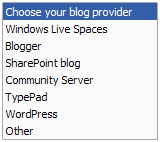 Setting up your blog host is a simple process as long as your host is a recognized provider (as shown in the choices at right) or it uses a known API. The step by step setup will ask all of the expected questions to create a publishing connection and you’re ready to go. Any categories that you have defined will be downloaded from your site and can be inserted into your post before publishing it. When the entry is ready, click on the Publish button and your post is sent to your blog for the world to admire.
We’ll look at the tool in greater detail in the days to come as I try more of the features but for now I’m satisfied but not overwhelmed. Are there any immediate features missing? As far as I can tell there is no way to insert tags but I may be simply missing the feature. Time will tell.
 LOVE | ACCEPT | FORGIVE